Omni Meet

Meetings that end with a plan

Guests join from a link with no account. Shared notes, polls and Q&A are built in, and what you decided is still there afterwards.

Free for teams of up to 10 people · Guests never need an account

Two colleagues waving to the people in a video call on a laptop

Everything a meeting needs, in the browser.

Omni Meet is the video meeting tool in OmniTeam. People join from a link, take notes together, ask questions and vote, and the notes and decisions stay with the meeting.

  1. Send the link

    Paste it in an email, a chat or a calendar invitation.

  2. Guests join in the browser

    They type a name. No account, nothing to install.

  3. Decide together

    Take notes, ask questions and vote while you talk.

  4. Find it afterwards

    The notes, the chat and what you decided stay with the meeting.

Before, during and after the meeting

A meeting is more than the hour on the call.

A woman checking the day's meetings on her phone over a morning coffee
Before

Ready before it starts

  • Schedule from Meet or the calendar, once or repeating.
  • Invitations by email, with the link inside.
  • The notes are ready in advance, with open items from last time if you want them.

Four colleagues laughing around a meeting room table during a hybrid video meeting
During

Everyone gets a word in

  • Shared notes, and private ones just for you.
  • Questions with votes, anonymous if you like.
  • Polls, and raised hands in order.
A man in a café writing a note on his phone after a video meeting
After

Nothing gets lost

  • The notes, chat, questions and polls stay with the meeting.
  • Unticked items move on to the next meeting.
  • Replay the recording with the chat, on the Team plan.

Anyone can join, from anywhere

A link is all your guests need.

Guest links

Anyone with the link joins from the browser with a name. No account, no download.

A check before you join

Everyone sees themselves and picks camera, microphone and speaker before going in.

Waiting room

Let people in one at a time, or everyone at once.

On any device

Any modern browser, on a computer or a phone.

A woman on a city street taking a video call on her phone, with earbuds
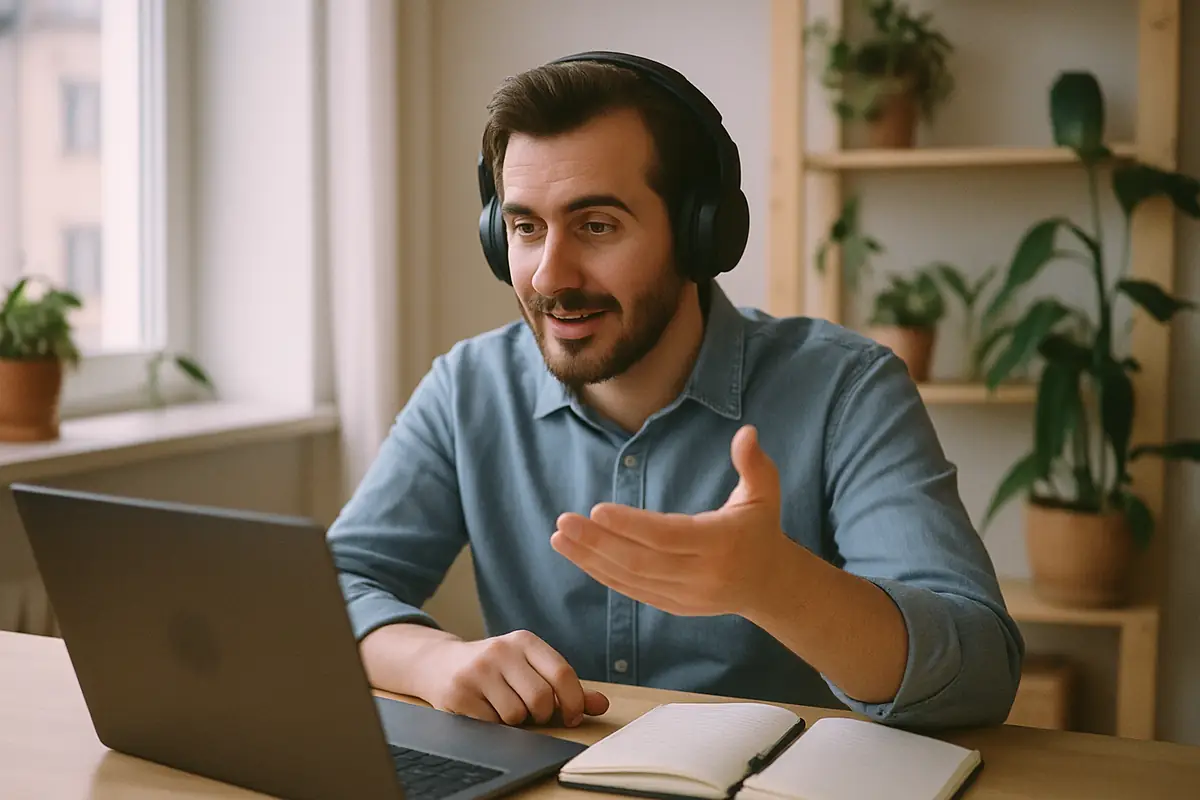
A man with headphones leading a video meeting from his laptop

You run the room

The controls a host needs, where you expect them.

Host controls

Mute everyone, stop someone's video or screen, remove a participant, lock the meeting or set a password.

Who presents and who writes

Let only hosts share their screen or write in the chat, when that is what the meeting needs.

Co-hosts

Share the running of the room with a colleague.

Spotlight

Put one person on everyone's screen.

Attendance reports

See who joined and for how long, and download it as a CSV file.

Recordings everyone agreed to

Nobody is recorded without saying yes.

Consent from each person Team

When recording starts, everyone is asked. Until a person agrees, nothing of theirs is recorded.

Pause and resume Team

Stop the recording for the part that should not be kept.

Replay with the chat Team

Watch the recording together with the meeting chat, the questions and who was there.

Kept in your Drive Team

Recordings are saved in Drive and stored encrypted on our servers.

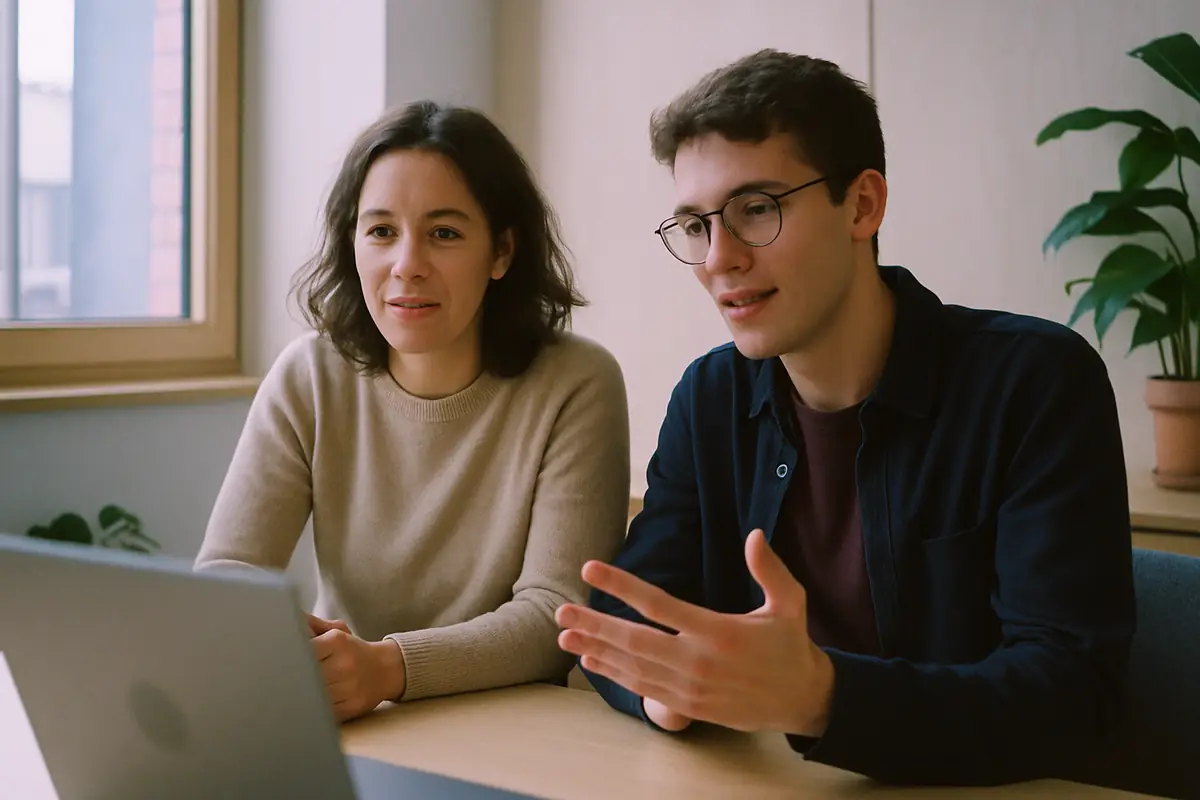
Two colleagues presenting together to a video call from a meeting room
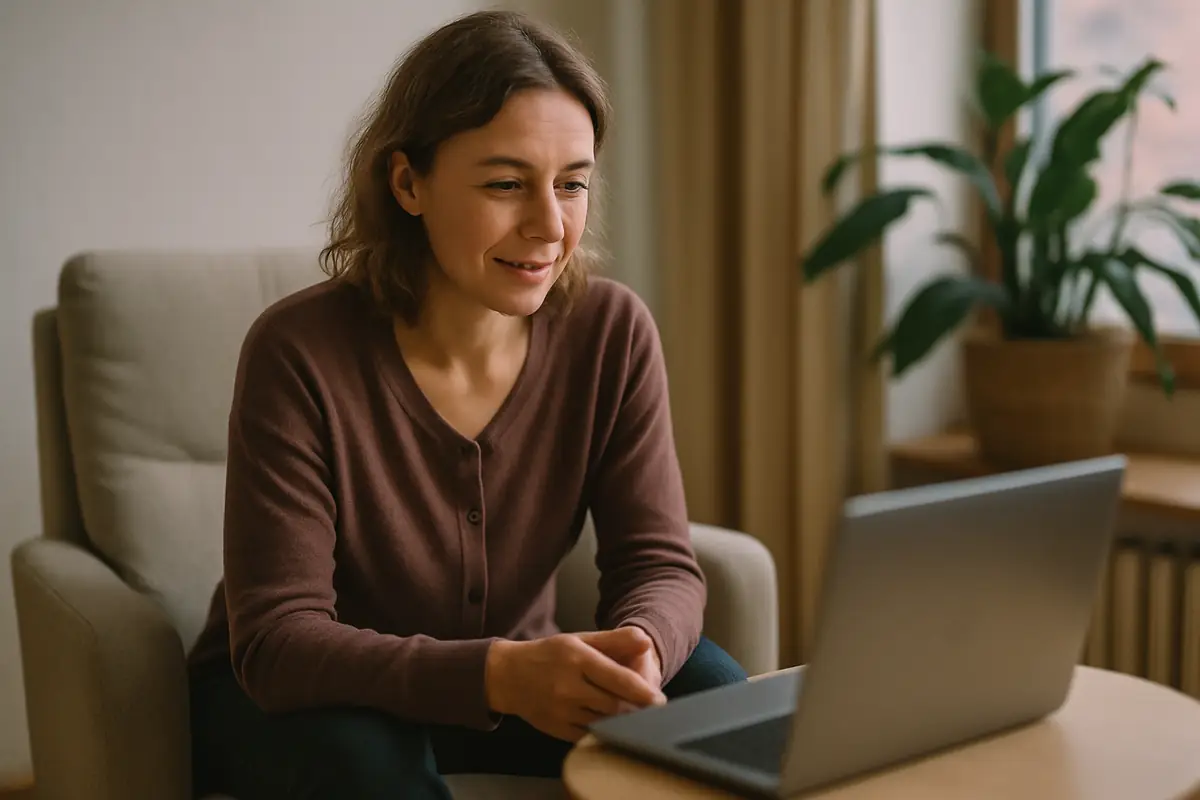
A woman listening attentively during a private video session in a quiet room

Private when it matters

For client calls and conversations that stay between you.

End-to-end encryption

Turn it on when you schedule a meeting in OmniTeam. Audio and video are encrypted on each participant's device, so only the people in the meeting can see and hear it. Encrypted meetings are not recorded.

Guest data kept short

A guest's IP address, email address and browser version are deleted 30 days after the meeting.

An EU company

OmniTeam is an EU company with its servers in the EU and no US sub-processors.

Also in every meeting

  • Screen sharing
  • Reactions
  • Background blur and images
  • Push-to-talk
  • Speaker selection
  • Schedule from Meet
  • Repeating meetings
  • Email invitations
  • Rejoin a meeting you left
  • English and Swedish

Made for how you meet

Meetings with clients and partnersGuests join from a link, with no account.
Sessions with clientsA waiting room and end-to-end encryption.
Weekly team meetingsNotes that carry over from one week to the next.

Questions about Omni Meet

Do guests need an account?

No. Guests open the link in a browser, type their name and join. Nothing to install, on a computer or a phone.

Can we take notes in the meeting?

Yes. Every meeting has shared notes and your own private notes, in a panel next to the call. They stay with the meeting afterwards, and a calendar meeting keeps its notes even without video.

Who can read the meeting notes?

You choose: only you, the people invited, or anyone with the link. An organisation can turn off sharing by link.

Is anyone recorded without knowing?

No. Recording is available on the Team plan, and each person is asked when it starts; nothing of theirs is recorded until they agree.

Is it end-to-end encrypted?

When you turn it on for a meeting you schedule in OmniTeam. Encrypted meetings work in up-to-date Chrome, Firefox and Safari, show that they are encrypted, and cannot be recorded.

How many people can join, and for how long?

On the free plan, meetings last up to 60 minutes with up to 10 people. On Team there is no time limit and up to 100 people can join; on Enterprise, up to 300.

Where is Omni Meet hosted?

On servers in the EU, run by an EU company. Data is backed up every day.

One link. Everyone's in.

Free for teams of up to 10 people. Your guests never need an account.